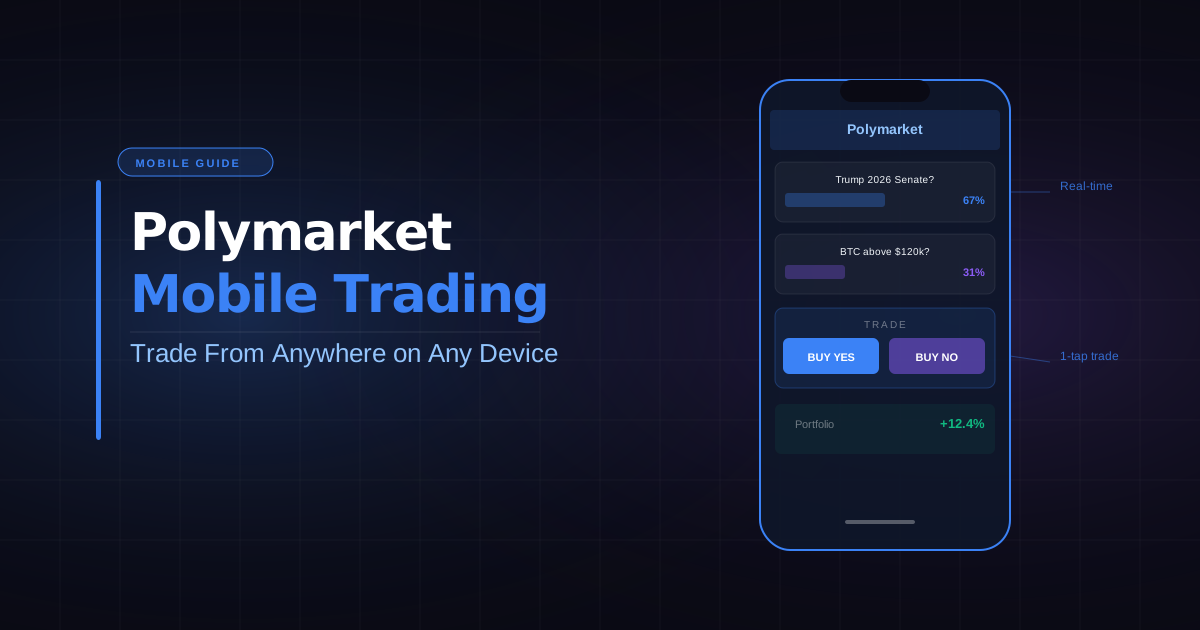
Polymarket doesn’t have a native app on the App Store or Google Play — but that doesn’t mean you’re stuck at your desk. The platform runs as a Progressive Web App (PWA) that installs cleanly on both iPhone and Android, giving you a near-native experience straight from your browser. This guide walks you through every step: what a PWA actually is, how to install it on each platform, how to get your wallet working on mobile, and how to trade prediction markets from your phone without making expensive mistakes.
No Native App — But There’s a PWA
As of 2026, Polymarket has not released a dedicated application through the Apple App Store or Google Play Store. If you search either marketplace you won’t find an official Polymarket listing — and any third-party apps claiming to be Polymarket should be treated with extreme caution. Our dedicated article on whether Polymarket has an app covers the reasons in detail, but the short version is that Apple’s and Google’s review processes create real friction for crypto-native, real-money prediction market platforms.
What Polymarket offers instead is a Progressive Web App. A PWA is a website built to behave like a native app: it can be installed to your home screen, opens in its own window without browser chrome, loads quickly with cached assets, and — on Android in particular — can receive push notifications. The underlying technology is the same web stack as the desktop site, which means features are identical. The main limitation compared to a true native app is deeper OS integration: no widgets, no Siri/Google Assistant shortcuts, and slightly less polished animations on iOS.
For most traders, the PWA is genuinely sufficient for checking positions, entering quick trades, and monitoring market movements while away from a computer.
Installing Polymarket as a PWA on iPhone (iOS)
Apple restricts PWA installation to Safari — you cannot add a PWA to your home screen from Chrome, Firefox, or any other browser on iOS. Make sure you’re using Safari before starting.
- Open Safari on your iPhone and navigate to polymarket.com.
- Wait for the page to fully load. You should see the market listings and be able to scroll.
- Tap the Share button — the square icon with an upward arrow, located in the bottom toolbar on iPhone or the top toolbar on iPad.
- Scroll down the share sheet and tap “Add to Home Screen”. If you don’t see it immediately, scroll the second row of icons in the share sheet to the right.
- On the next screen, you can edit the name that will appear under the icon. Leave it as “Polymarket” or shorten it if you prefer, then tap Add in the top right corner.
- The Polymarket icon now appears on your home screen. Tap it to open Polymarket in its own full-screen window, without Safari’s address bar.
Note: On iOS 16.4 and later, PWAs installed from Safari support web push notifications. You’ll be prompted to allow notifications the first time you open the installed PWA.
One important caveat for iPhone users: Safari on iOS uses WebKit, which has historically had more limited support for certain Web3 interactions than Chrome on Android. You may occasionally need to switch back to Safari proper (rather than the installed PWA) to complete wallet authentication steps if something doesn’t respond as expected.
Installing Polymarket as a PWA on Android
Android’s PWA support is generally stronger than iOS’s, and the installation process works with Chrome (the default browser on most Android devices).
- Open Chrome on your Android device and go to polymarket.com.
- Once the page loads, tap the three-dot menu in the top-right corner of Chrome.
- Tap “Add to Home screen” (on some Android versions this may read “Install app” if the site has a full PWA manifest).
- A dialog will appear asking you to confirm the name and icon. Tap Add or Install.
- Android may ask whether to add the shortcut to the home screen directly or to the app drawer. Choose your preference.
- The Polymarket icon appears on your home screen or app drawer. Opening it launches a standalone app window without Chrome’s browser UI.
Android PWAs also support push notifications through Chrome’s notification system, which can be useful for price alerts if the platform adds that functionality. Background sync is also better on Android, meaning the app state refreshes more reliably between sessions.
Setting Up MetaMask Mobile
Trading on Polymarket requires a Web3 wallet. On desktop, most traders use the MetaMask browser extension. On mobile, you need MetaMask Mobile — a separate app available on both the App Store and Google Play.
Here’s how to connect it to Polymarket on mobile:
- Download MetaMask from the official App Store or Google Play listing (verify the developer is “MetaMask” by Consensys).
- Set up a new wallet or import your existing wallet using your 12-word seed phrase. Never enter your seed phrase anywhere except the official MetaMask app.
- Make sure the Polygon network is added to MetaMask. Go to Settings → Networks and add Polygon if it isn’t already there (RPC: polygon-rpc.com, Chain ID: 137, Symbol: MATIC).
- Open Polymarket in your mobile browser (not from the MetaMask built-in browser initially — connect via WalletConnect).
- On the Polymarket sign-in screen, tap WalletConnect.
- A QR code or deep link will appear. On iOS, tap “Open in MetaMask.” On Android, the deep link should launch MetaMask automatically.
- Approve the connection inside MetaMask, then sign the authentication message. This costs no gas.
If you’re new to wallets entirely, our Polymarket beginner guide covers the full wallet setup process from scratch, and our deposit guide explains how to get USDC onto Polygon once your wallet is connected.
The Mobile Trading Experience: What Works Well, What Doesn’t
Polymarket’s mobile web experience is better than you might expect from a DeFi platform, but it’s still a ported desktop interface rather than something purpose-built for small screens. Here’s an honest breakdown.
| Feature | iPhone (Safari PWA) | Android (Chrome PWA) |
|---|---|---|
| Home screen install | Yes (Safari only) | Yes (Chrome, Firefox) |
| Standalone window (no browser bar) | Yes | Yes |
| Push notifications | iOS 16.4+ only | Yes (Chrome) |
| WalletConnect support | Good | Excellent |
| Market browsing | Smooth | Smooth |
| Order entry UI | Usable, slightly cramped | Usable, slightly cramped |
| Order book / charts | Readable, hard to tap precisely | Readable, hard to tap precisely |
| Background refresh | Limited (iOS restrictions) | Better |
| Wallet sign prompts | Occasional friction | Generally smooth |
What works well: Browsing markets, checking your open positions, reading market descriptions, and placing straightforward YES/NO trades at market price all work comfortably on a phone. The interface scales reasonably to a 6-inch screen.
What doesn’t: Limit order entry is fiddly on a touchscreen — the number fields are small and you’re more likely to enter the wrong amount. The order book is technically visible but tapping specific price levels with your thumb is imprecise. Detailed chart analysis (see our beginner guide for chart reading basics) is better done on desktop. Managing gas fee settings in MetaMask mobile also requires more taps than the browser extension.
Tips for Mobile Traders
Enable notifications on Android. Chrome PWA notifications can alert you to significant price movements if you’ve bookmarked key markets. On iOS 16.4+, enable notifications when the PWA prompts you on first launch.
Use market orders for speed, limit orders for size. On mobile, market orders (buying at the current best ask) are much easier to execute accurately than limit orders. For large positions — where limit orders matter for slippage — consider placing them from desktop. See our Polymarket limit orders guide for a full walkthrough of setting price, quantity, and GTC vs IOC order types. For a full explanation of how the order book works, see our PWA guide.
Zoom in before tapping trade buttons. The “Buy YES” and “Buy NO” buttons are adjacent on mobile. A fat-finger error here is real money. Double-check the direction before confirming in your wallet.
Keep your USDC balance topped up. Depositing on mobile adds friction: you may need to switch between apps multiple times to complete a transfer. Keep a working balance in your Polymarket account so you’re not scrambling to fund a trade. Our deposit guide has step-by-step instructions if you need to top up. If idle USDC in your account is earning nothing between trades, our USDC yield guide covers the best options for keeping that capital working.
Watch for wallet timeouts. MetaMask Mobile sessions can time out, requiring you to re-authenticate. If a trade confirmation doesn’t appear in MetaMask, close and reopen the app then retry.
Trade on Wi-Fi when confirming large positions. Mobile data is usually fast enough for browsing, but wallet signing prompts can stall on weak connections. Confirm important trades when you have a stable connection to avoid timeout errors.
Bookmark specific markets. Safari and Chrome both allow you to bookmark individual market pages. For markets you’re actively trading, bookmark the direct URL so you can jump straight to the order panel without navigating from the home screen.
Mobile Copy Trading: The Better Alternative for On-the-Go
If you’re honest about mobile trading patterns, most people check their phone in short bursts — commuting, waiting in line, between meetings. That’s not an ideal context for the careful analysis that good prediction market trading requires. The risk of reacting to a short-term price move without full context is higher on mobile simply because the research tools are less accessible.
This is exactly where copy trading changes the calculus. Rather than trying to analyse markets on a cramped screen and execute trades quickly enough to matter, you can mirror the on-chain activity of wallets that are already doing the analytical work. Your capital is deployed automatically, without you needing to be watching a screen at all.
Our guide on what Polymarket copy trading is explains the mechanics in full. The short version: copy trading services monitor top-performing Polymarket wallets and replicate their positions proportionally into your account. You set your allocation once, and the system handles execution — whether you’re at your desk or not.
For a direct comparison of the two approaches, our article on getting started with Polymarket covers both manual and copy-assisted strategies.