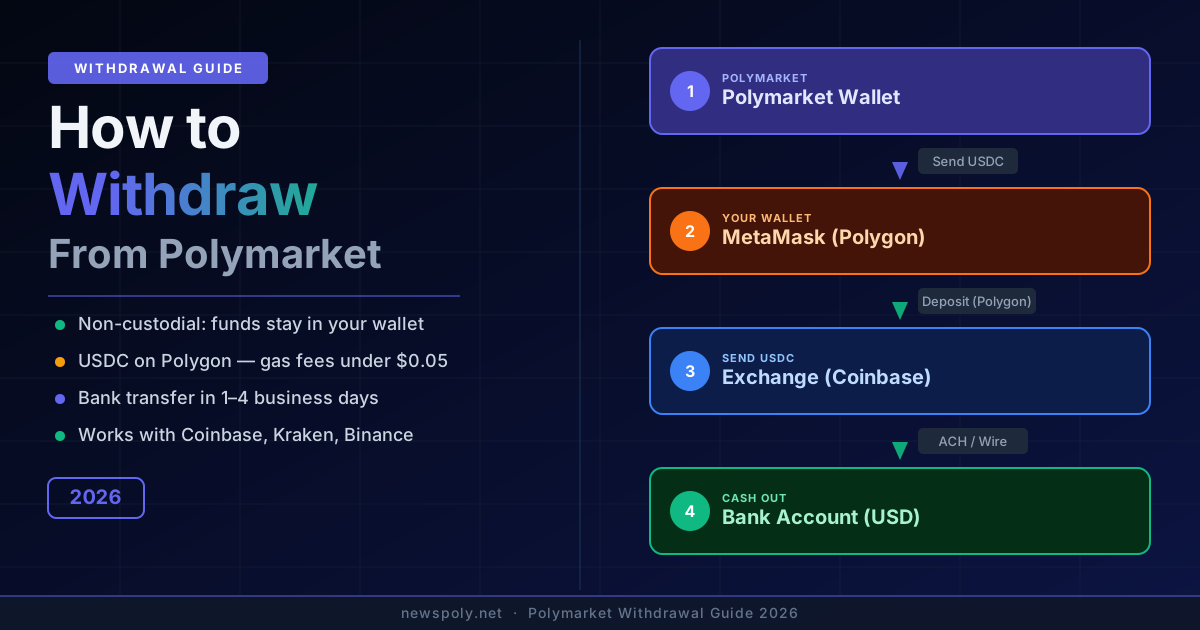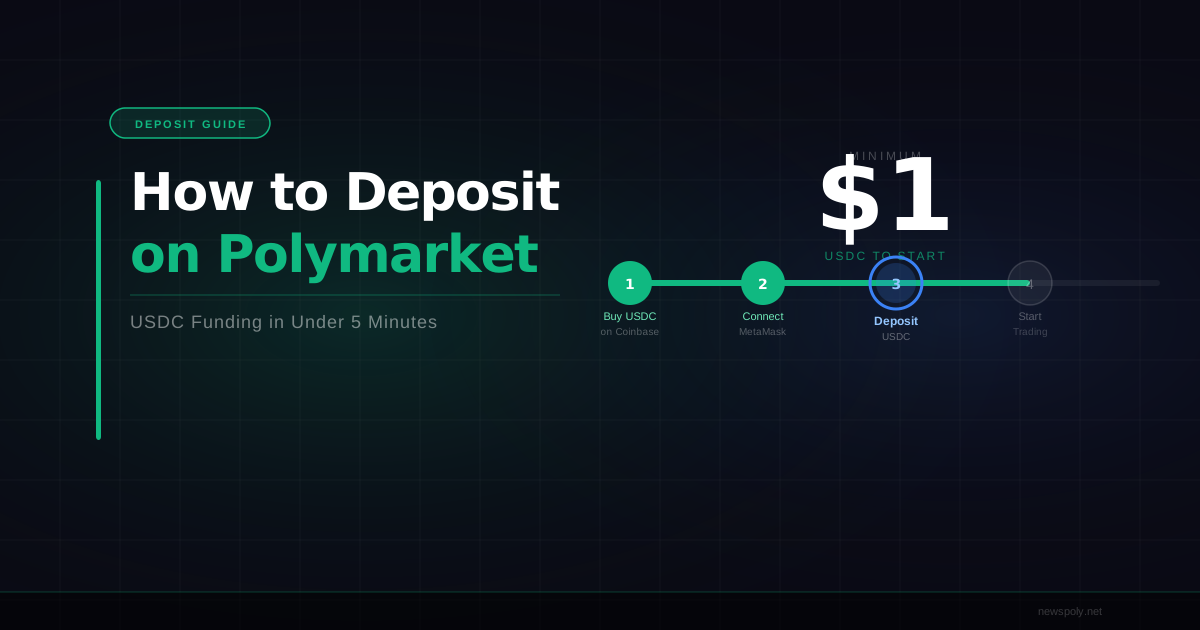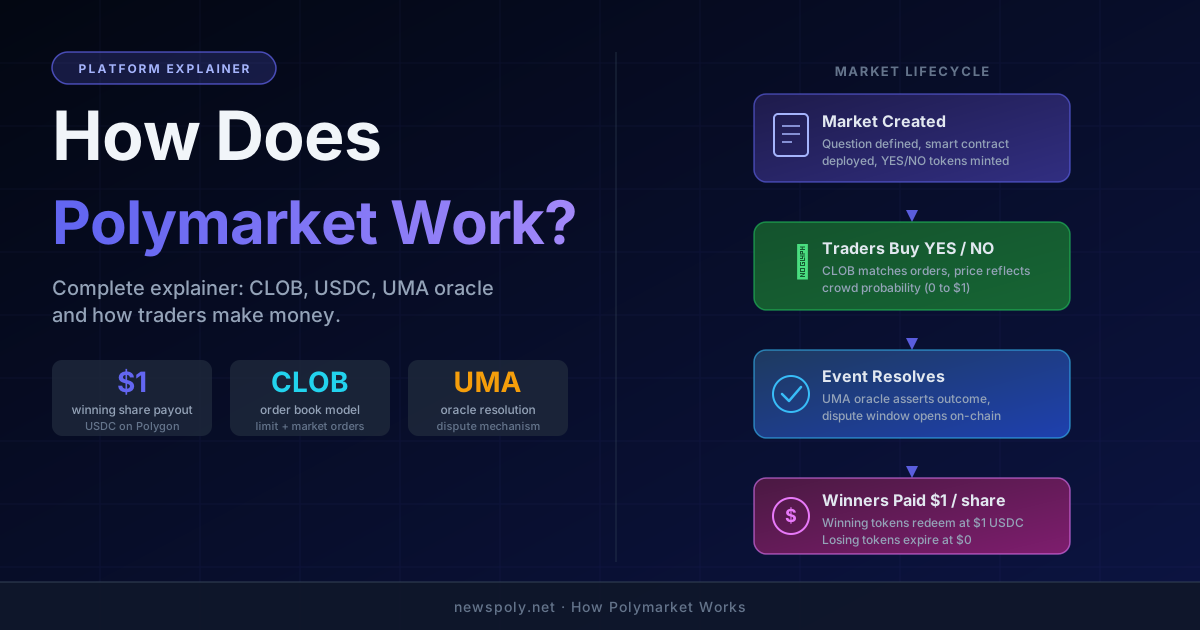
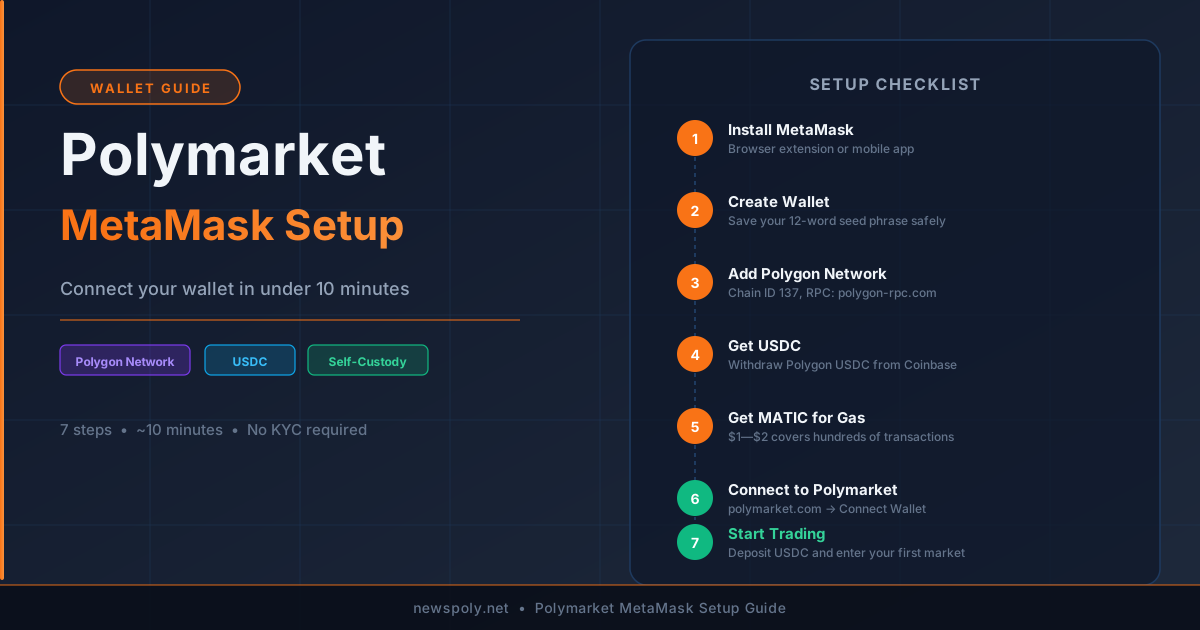
MetaMask is the most widely used browser wallet for Polymarket and takes under 10 minutes to set up from scratch. This guide walks through every step: installing the extension, creating a wallet, adding the Polygon network, acquiring USDC and MATIC, and making your first connection to Polymarket. If you are completely new to the platform, read the beginner guide first to understand what Polymarket is and how prediction markets work before you fund a wallet.
What Is MetaMask?
MetaMask is a browser extension and mobile app that functions as a self-custody cryptocurrency wallet. It is available for Chrome, Firefox, Brave, and Edge on desktop, and as a standalone app on iOS and Android. MetaMask was originally built for Ethereum but now supports any EVM-compatible network — including Polygon, which is the blockchain Polymarket runs on.
Self-custody means MetaMask holds your private keys locally on your device. No company, including MetaMask's developer Consensys, can access your funds or freeze your account. This is fundamentally different from keeping funds on a centralized exchange like Coinbase. The tradeoff is that you are entirely responsible for your own key security — if you lose your seed phrase and your device, no recovery is possible.
MetaMask is free to download and use. It earns revenue through an optional token swap feature; using it as a wallet for Polymarket costs you nothing except the Polygon gas fees that the network itself charges (typically fractions of a cent per transaction). If you are curious about how Polymarket itself functions under the hood before diving into wallet setup, the guide on how Polymarket works covers the USDC, CLOB, and UMA oracle mechanics in plain language.
Step 1: Install MetaMask
Always download MetaMask from the official source: metamask.io/download. The site auto-detects your browser and presents the correct extension link.
For desktop:
- Visit metamask.io/download and click Install MetaMask for Chrome (or your browser).
- You are redirected to the official browser extension store. Click Add to Chrome (or equivalent).
- Confirm the permissions prompt. MetaMask will appear in your browser toolbar as the fox icon.
- Click the fox icon to begin the setup wizard.
For mobile, search for "MetaMask" in the App Store or Google Play, or scan the QR code on the download page. Verify the developer is listed as MetaMask and the publisher is Consensys before installing.
Security warning: Dozens of fake MetaMask extensions and apps exist on search engines and app stores. Never install MetaMask from a Google ad, a third-party download site, or any URL other than metamask.io. Fake MetaMask apps are one of the most common ways crypto users lose their entire wallet balance.
Step 2: Create a New Wallet
After installing the extension, click the fox icon and select Create a new wallet. If you already have a MetaMask wallet and want to use a fresh one for Polymarket, you can add a new account within the same MetaMask installation instead.
- Accept the usage agreement and create a strong password. This password unlocks MetaMask on your device — it does not protect your wallet on other devices.
- MetaMask will show you a Secret Recovery Phrase (also called a seed phrase): 12 random words in a specific order.
- Write the phrase down on paper — or two pieces of paper stored separately. Do not screenshot it, do not store it in a notes app, do not email it to yourself.
- MetaMask will ask you to confirm the phrase by clicking words in the correct order. Complete this step.
- Your wallet is now created. You will see your Ethereum address at the top of the MetaMask interface.
Wallet connected? Put it to work automatically. PolyCopyTrade connects to your MetaMask wallet and starts copying top Polymarket traders — your wallet, your keys, fully automated.
Seed phrase safety — this is critical: Your 12-word seed phrase is a master key to your entire wallet. Anyone who has it can import your wallet on any device and drain your funds instantly. MetaMask will never ask for your seed phrase inside the app after setup. Any website, email, or "support agent" that asks for your seed phrase is attempting to steal your funds — no exceptions. Store the phrase offline only, ideally in two separate physical locations.
Step 3: Add Polygon Network to MetaMask
MetaMask defaults to Ethereum mainnet. Polymarket runs on Polygon, so you need to add the Polygon network. The easiest method is via ChainList.org: search for "Polygon", click Add to MetaMask, and confirm.
Alternatively, you can add it manually inside MetaMask:
- Open MetaMask and click the network selector at the top (it currently says "Ethereum Mainnet").
- Click Add network at the bottom of the dropdown.
- Click Add a network manually and enter the following values exactly:
- Network name: Polygon Mainnet
- New RPC URL: https://polygon-rpc.com
- Chain ID: 137
- Currency symbol: MATIC
- Block explorer URL: https://polygonscan.com
Click Save. You can now switch between Ethereum Mainnet and Polygon Mainnet using the network selector. When using Polymarket, always ensure MetaMask is set to Polygon Mainnet before interacting with the site.
Step 4: Get USDC on Polygon
Polymarket only accepts USDC on the Polygon network. You cannot deposit ETH, Bitcoin, or USDC from any other blockchain directly. The most reliable way to acquire Polygon USDC is to buy USDC on Coinbase and withdraw it to Polygon.
- Log in to Coinbase and buy USDC with your bank account, debit card, or existing crypto balance.
- Click Send/Receive, enter your MetaMask wallet address, and set the amount.
- Before confirming, click the Network selector and choose Polygon. This step is critical — the default is often Ethereum mainnet, which will not work for Polymarket without bridging.
- Confirm the transaction. USDC will arrive in your MetaMask Polygon wallet within 1–5 minutes.
For a full breakdown of every method to acquire and move USDC, including bridging from Ethereum mainnet and using Kraken or on-ramp services, see the dedicated guide to getting USDC on Polygon.
Step 5: Get a Small Amount of MATIC for Gas
Every transaction on Polygon requires a tiny amount of MATIC to pay gas fees. USDC does not pay gas — only MATIC does. If your MATIC balance is zero, every MetaMask transaction will fail before it even attempts to process.
The amounts involved are extremely small. A deposit to Polymarket costs roughly $0.005 in MATIC. Buying $1–$2 worth of MATIC gives you enough gas for hundreds of transactions.
How to get MATIC:
- Buy MATIC on Coinbase or Kraken and withdraw to your MetaMask address on the Polygon network. The same address as your USDC wallet.
- Buy MATIC directly in MetaMask using the built-in buy feature (powered by MoonPay or similar — fees apply).
- Polygon MATIC faucet: Some community faucets dispense tiny MATIC amounts for free, sufficient for your first transaction. Search for "Polygon MATIC faucet" but use only well-known, community-verified faucets.
After receiving MATIC, open MetaMask, switch to Polygon Mainnet, and confirm your MATIC balance is greater than zero. You are now ready to connect to Polymarket.
Step 6: Connect MetaMask to Polymarket
With MetaMask installed, Polygon network added, USDC funded, and MATIC for gas in your wallet, connecting to Polymarket takes under 60 seconds.
- Open MetaMask and switch the network to Polygon Mainnet.
- Navigate to polymarket.com.
- Click Connect Wallet in the top right corner of the page.
- A modal will appear listing wallet options. Select MetaMask.
- MetaMask will open a popup asking which account to connect. Select your account and click Next, then Connect.
Step 7: Approve the Connection and Deposit
After clicking Connect, Polymarket will ask you to sign a message in MetaMask to verify ownership of the wallet. This is a signature request, not a transaction — it costs no gas and moves no funds. Click Sign to proceed.
- Your Polymarket profile is now linked to your MetaMask wallet. You will see your wallet address truncated in the top right of the Polymarket interface.
- To fund your Polymarket account, click your profile icon and select Deposit.
- Enter the USDC amount you want to deposit and click Deposit.
- MetaMask will ask you to approve the USDC spend allowance (a one-time permission step). Confirm it.
- MetaMask will then prompt you to confirm the actual deposit transaction. Confirm it.
- Your Polymarket balance updates within seconds. You are ready to trade.
Total deposit gas cost: approximately $0.01 in MATIC or less — negligible regardless of how much USDC you are depositing. For a full breakdown of what Polymarket charges when you trade and win, see the fees guide.
Just funded your Polymarket wallet? PolyCopyTrade lets you automatically mirror the trades of proven top performers on Polymarket — so your capital starts working from day one without spending hours analyzing every market.
Can You Use Other Wallets Besides MetaMask?
Yes. Polymarket supports WalletConnect, a protocol that allows connection from any compatible mobile or desktop wallet. Supported alternatives include:
- Coinbase Wallet (the non-custodial wallet app, separate from the Coinbase exchange app)
- Trust Wallet
- Rainbow Wallet
- Ledger (hardware wallet, via MetaMask or WalletConnect)
- Any WalletConnect-compatible wallet
Polymarket also offers social login options (Google, email) that create a non-custodial smart wallet behind the scenes. These are designed for users who are new to crypto and want to skip the wallet setup process. The underlying mechanics remain the same: USDC on Polygon, gas in MATIC. For guidance on using Polymarket without a desktop browser, see our article on whether Polymarket has a mobile app.
MetaMask remains the most widely supported and tested option for Polymarket. If you encounter issues with another wallet, the Polymarket community and support team will most commonly be able to help if you are using MetaMask.
MetaMask Security Tips
Once your MetaMask wallet holds real funds, security becomes non-negotiable. The most important practices:
- Never share your seed phrase. This is the only rule that matters above all others. Your 12-word phrase is the master key. Share it with no one, under any circumstances. MetaMask support will never ask for it. No website needs it to "verify" your wallet.
- Download MetaMask only from metamask.io. Bookmark the official site. Every month, fake MetaMask websites rank in Google ads and look identical to the real thing. They harvest seed phrases the moment you enter them during "setup."
- Check what you are signing. Before confirming any transaction or signature in MetaMask, read what it says. Legitimate Polymarket interactions only request USDC approvals and standard transfers. If a popup asks for unusual permissions or large token allowances from an unfamiliar site, reject it.
- Use a hardware wallet for large balances. If you plan to hold significant USDC (over $1,000), consider a Ledger or Trezor hardware wallet. It stores your private key offline and requires physical confirmation for every transaction.
- Lock MetaMask when not in use. Click your account icon and select Lock. This requires your password to re-open. It does not protect against seed phrase theft, but limits exposure if someone briefly accesses your computer.
- Be cautious of browser extensions. Malicious extensions can read clipboard content (your copied wallet address) or inject code into web pages. Keep your extension list minimal and only install from trusted publishers.
For a broader look at the safety of Polymarket as a platform, including the smart contract and regulatory risk picture, see the dedicated safety guide.
Troubleshooting Common MetaMask Issues on Polymarket
Wrong Network Error
If Polymarket shows a "wrong network" banner or your transactions fail immediately, MetaMask is set to a network other than Polygon Mainnet. Click the network selector in MetaMask, switch to Polygon Mainnet, and refresh the Polymarket page. This is the most common setup error.
Transaction Failed — Insufficient MATIC
If MetaMask shows "insufficient funds for gas" when you try to deposit USDC, your MATIC balance is too low. Acquire MATIC as described in Step 5 above. Even $0.50 worth of MATIC is enough to get started. Your USDC balance is irrelevant for paying gas.
Transaction Stuck or Pending
Polygon gas prices are typically so low that transactions confirm almost instantly. If a transaction is stuck as "pending" in MetaMask for more than a few minutes, you likely sent it with an unusually low gas price. You can speed it up by clicking the pending transaction in MetaMask and selecting Speed Up, which rebroadcasts with a higher gas price. Alternatively, use the Cancel option to void the transaction (this also requires a small MATIC fee).
MetaMask Not Showing USDC Balance
If your USDC arrived on Polygon but MetaMask shows zero, you may need to import the USDC token manually. In MetaMask on Polygon Mainnet, scroll down and click Import tokens. Enter the official Polygon USDC contract address: 0x3c499c542cEF5E3811e1192ce70d8cC03d5c3359. This is a display issue only — your USDC is on the blockchain regardless of what MetaMask shows.
Polymarket Not Recognizing Connected Wallet
If Polymarket still shows "Connect Wallet" after you connected MetaMask, try refreshing the page. If the problem persists, click the MetaMask fox icon and check whether the site polymarket.com is listed as connected. If not, reconnect. Some browser privacy settings and extensions (ad blockers, script blockers) can interfere with wallet connections — try disabling them temporarily for polymarket.com.
Frequently Asked Questions
Do I need to verify my identity to use MetaMask?
No. MetaMask is a self-custody wallet with no KYC or identity verification requirements. You create it with a password and seed phrase only — no name, email, or government ID required. Polymarket itself also does not require KYC for standard usage. However, if you use a centralized exchange like Coinbase to buy USDC, that exchange has its own KYC requirements which are separate from MetaMask and Polymarket.
Can I use the same MetaMask wallet for Polymarket and other DeFi apps?
Yes. A single MetaMask wallet can connect to any number of DeFi applications simultaneously. Your USDC and MATIC balances are on the Polygon blockchain and are accessible from any app you authorize. You can use the same wallet for Polymarket, Uniswap, Aave, or any other Polygon-based application. Connecting a wallet to an app only grants it permission to request transactions — it does not give the app access to your funds without your explicit approval in MetaMask each time.
What happens to my Polymarket balance if I uninstall MetaMask?
Your funds are safe. Your USDC is held in Polymarket's smart contracts on the Polygon blockchain, not inside the MetaMask application. MetaMask is only a key manager and interface. If you uninstall MetaMask, your wallet and all balances still exist on-chain. You can recover full access by reinstalling MetaMask and entering your 12-word seed phrase during setup. This is why keeping your seed phrase safe is so critical — it is the only way to recover access. For more on withdrawing your funds, see the withdrawal guide.
Setup complete — now make your wallet work harder. PolyCopyTrade connects directly to your MetaMask wallet and automatically copies the top-performing Polymarket traders. Non-custodial, transparent, and fully automated — your keys, your control.